How to Set Up Salesforce Text Message Automation (With Real Workflow Examples)


_How%20to%20Set%20Up%20Salesforce%20Text%20Message%20Automation.webp)

Salesforce text message automation lets you trigger a text the moment something changes inside your CRM.
This can be anything like a lead fills out a form, a deal moves to the next stage, an appointment is booked, and the right message is sent automatically.
SMS works so well because it gets a 98% open rate, and 90% of texts are read within three minutes, according to our recent benchmark report.
Setting up Salesforce SMS automation now puts you ahead of your competition, since only 36% of our customers trigger SMS from their CRM workflows.
This guide covers what Salesforce text message automation is, six workflows you can set up today, how to build one with Salesmsg, and what compliance actually asks of you.

What Is Salesforce SMS Automation?
Salesforce SMS automation sends texts based on what happens in your CRM, so you don't have to type each message by hand.
Every automation comes down to a trigger and an action. The trigger is an event in Salesforce, like a new lead, an updated opportunity stage, or a date field coming due. The action is the text that goes out in response, with the contact's details already filled in.
It works the same whether the message is transactional or promotional. For example, an appointment reminder and a Salesforce SMS marketing offer run on the exact same setup. The only things that change are the trigger and the consent rules behind it.
Two ways to set it up
There are two routes to automated SMS in Salesforce, and one is slightly better than the other.
- Native Salesforce SMS (Service Cloud or Messaging for Sales) handles basic inbound and outbound texting. But it comes with per-user licensing, volume limits, and thin automation across your objects.
- A dedicated AppExchange app that plugs into Salesforce Flow opens up two-way texting, a shared inbox, and triggers that can run from any object. This is where most revenue teams land.
Teams that automate tend to start with the same handful of flows. Appointment reminders, welcome series, and lead follow-up sequences are each used by 29% of customers, part of the 42% of businesses running some form of automation overall.
New to connecting the two systems? Start with our complete guide to Salesforce SMS integration, then come back here for the workflows. For a side-by-side of the tools, see our roundup of the best Salesforce text messaging apps.
How Salesforce Text Message Automation Works with Salesmsg
There are four different ways you can connect Salesmsg and Salesforce. Each method removes a manual messaging step that would otherwise slow your team down.
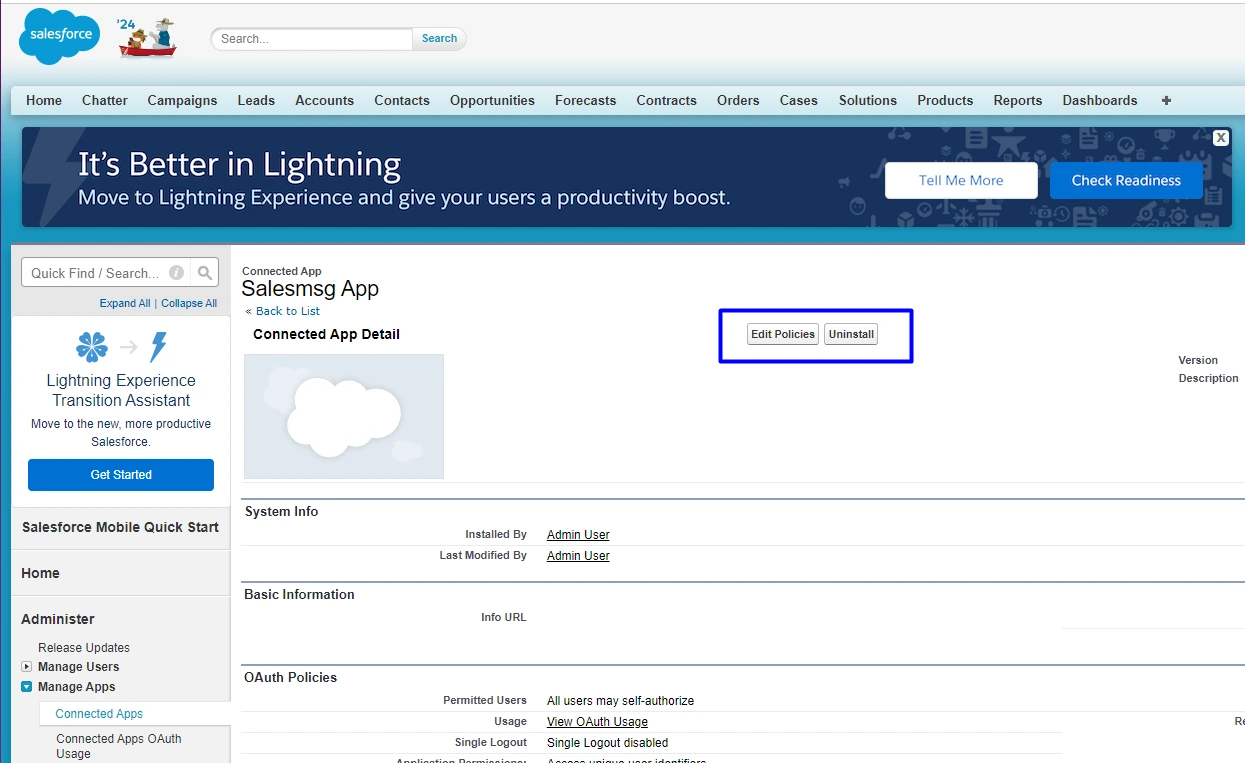
The Salesmsg widget inside Salesforce
The widget lives on any record page in Lightning or Classic. A rep can read the full history, send a SMS from Salesforce, or start a call without leaving the record in view.
It works across Leads, Contacts, Opportunities, Accounts, Cases, Campaigns, Person Accounts, and Custom Objects.
Salesforce Flow SMS actions
This is where automation happens. Salesmsg gives you a native action that drops into any Salesforce Flow.
When the Flow runs, it sends an automated SMS through your Salesmsg number with merge fields already filled in.
All you have to do is build the logic once, and every matching record gets a text from then on.
Two-way texting and a shared inbox
An automated text is only as useful as your ability to answer the reply.
When a lead texts back, it lands in a shared team inbox where any rep can pick up the thread. The automation starts a real conversation instead of a dead-end blast.
Activity Timeline syncing
Every text logs itself to the Salesforce Activity Timeline on the related record, whether a rep sent it or a Flow did. And there’s no setup required.
You can use Salesmsg for calling too, and recordings and transcripts land on the Timeline as well. That's a big part of why Salesforce teams opt to use voice and text on one number.
6 Salesforce Text Message Automation Workflows You Can Set Up Today
Each workflow below has a trigger, a sample message, and an outcome you can expect.
Note that the samples below are short on purpose.
Response rate drops with every 100 characters you add, and messages under 100 characters pull the highest response rates (from our benchmark report).
1. New lead auto-text
A prospect fills out your form at 10 PM. With email alone, your automated email sits in their inbox until morning, while a faster team texts them within a minute.
Instead this can be your reality:
As soon as Salesforce creates the Lead record, a Flow sends a text with the lead's name and your rep's name already filled in.
Hi [Name], it's Marcus at Northgate. Got your request just now. Free for a quick call today or tomorrow?
This is the highest-impact automation on the list. 57% of teams send their first text within 30 minutes of a new lead, but only 14% have automated it to go out in under a minute.
That's the difference between competing on speed and hoping the lead is still around later. Add an AI agent, and replies get handled in under a minute versus roughly 15 for a human rep, which lifts response rates by 88%.
2. Deal stage change follow-up
A deal moves to "Proposal Sent," which is also when a buyer is most likely to go quiet.
When the Opportunity stage updates, a Flow reads the new value and sends a text that matches where the deal sits.
Hi [Name], your proposal is ready to review. Want me to walk you through it this week?
The text drops a written touchpoint at exactly the stage where a lot of deals stall, and gives your lead an easy way to say yes to a next call.
3. Inbound keyword reply automation
Someone texts a keyword like DEMO, INFO, or START to your Salesmsg number, and the response is sent automatically.
The keyword itself starts the response, and because the contact texts first, you get a clean consent record at the same time.
Thanks for texting DEMO! Here's your booking link: [Link]. Pick any time that works.
This turns a printed sign, an email footer, or an ad into a self-serve front door. Your team only steps in once there's a real conversation going.
4. Post-call follow-up text
A rep wraps a call and promised to send pricing.
As soon as the call is logged in Salesforce, the follow-up text is sent while the conversation is still fresh.
Thanks for the call, [Name]. Here's the pricing doc we covered: [Link]. Questions? Just reply here.
Pairing texts with calls is the single biggest performance boost for your business. Per our benchmark report, businesses that combine the two see a median engagement rate of 24%, compared with 9% for text-only, a 2.6x increase.
Plus, Salesmsg runs calls and texts on one number and syncs both to the Timeline, so the follow-up just continues the conversation the call started.
5. Appointment reminder sequence
A meeting is set for tomorrow, and a quiet reminder the day before is the cheapest way to cut a no-show.
It runs off a date or time field on the record. The Flow sends a reminder a set number of hours out, then asks the contact to confirm.
Reminder: your appointment with [Company] is tomorrow at [Time]. Reply C to confirm or R to reschedule.
Appointment reminders give people an easy way to confirm or move a time without picking up the phone.
6. Re-engagement for stalled deals
A deal goes 14 days without a touch, and a light check-in is often all it takes to bring it back.
Once the last-contact date exceeds a threshold, a Flow identifies quiet records and sends a low-pressure nudge.
Hi [Name], still thinking about [Product]? Happy to answer any questions or hold your pricing for another week.
This is the workflow that recovers revenue you'd otherwise write off. 42% of all replies come from follow-up messages rather than the first text, and the sequences that work best run four to seven messages.
Send one text and move on, and you miss nearly half the replies that were coming.
Want to set these up for your own team? Start a free trial and build your first workflow today.
Step-by-Step: Setting Up a Salesforce SMS Automation with Salesmsg
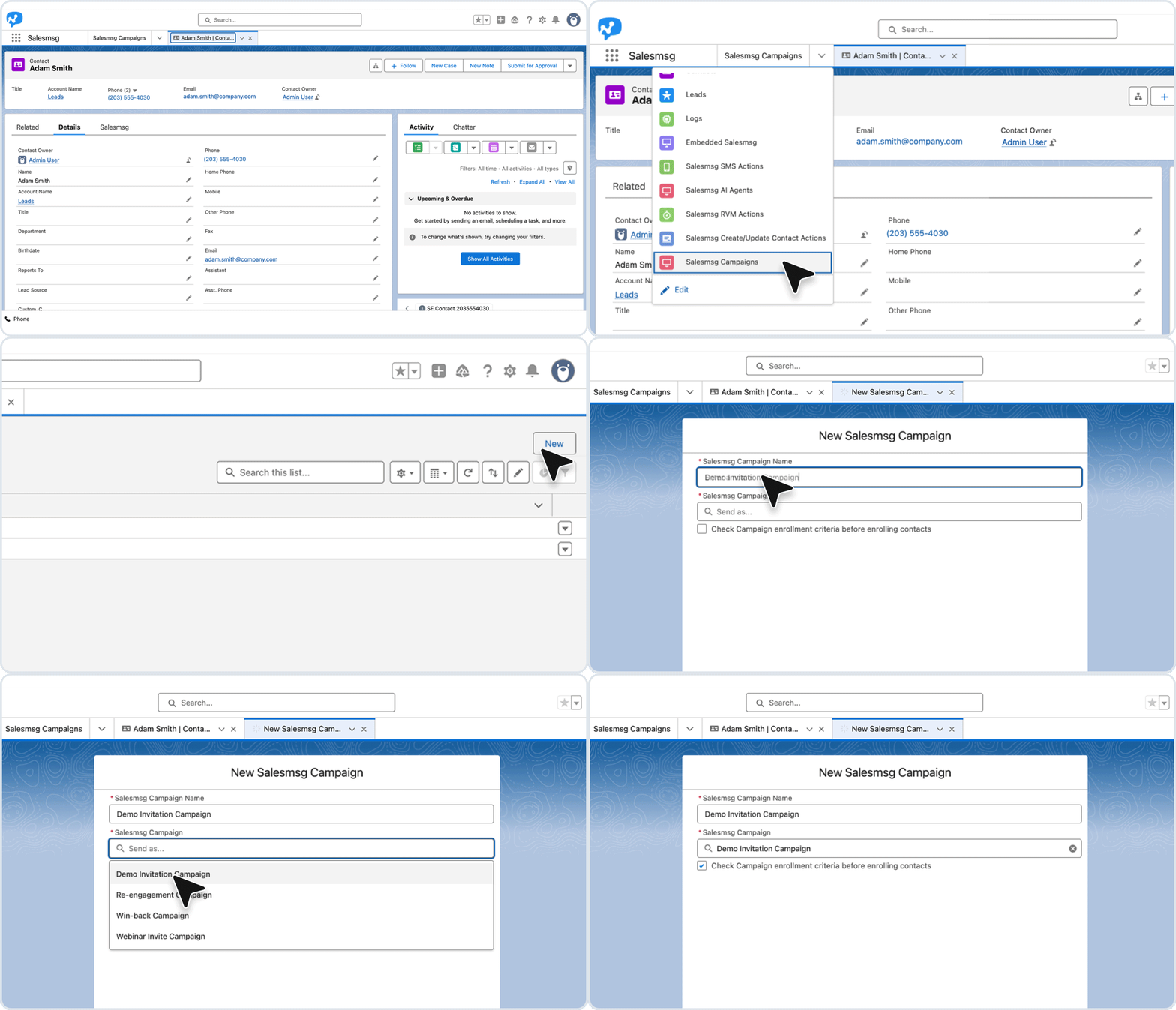
You don't need to be a Salesforce developer for any of this. Most teams turn on their first automated text in under an hour. Here's the setup, step by step.
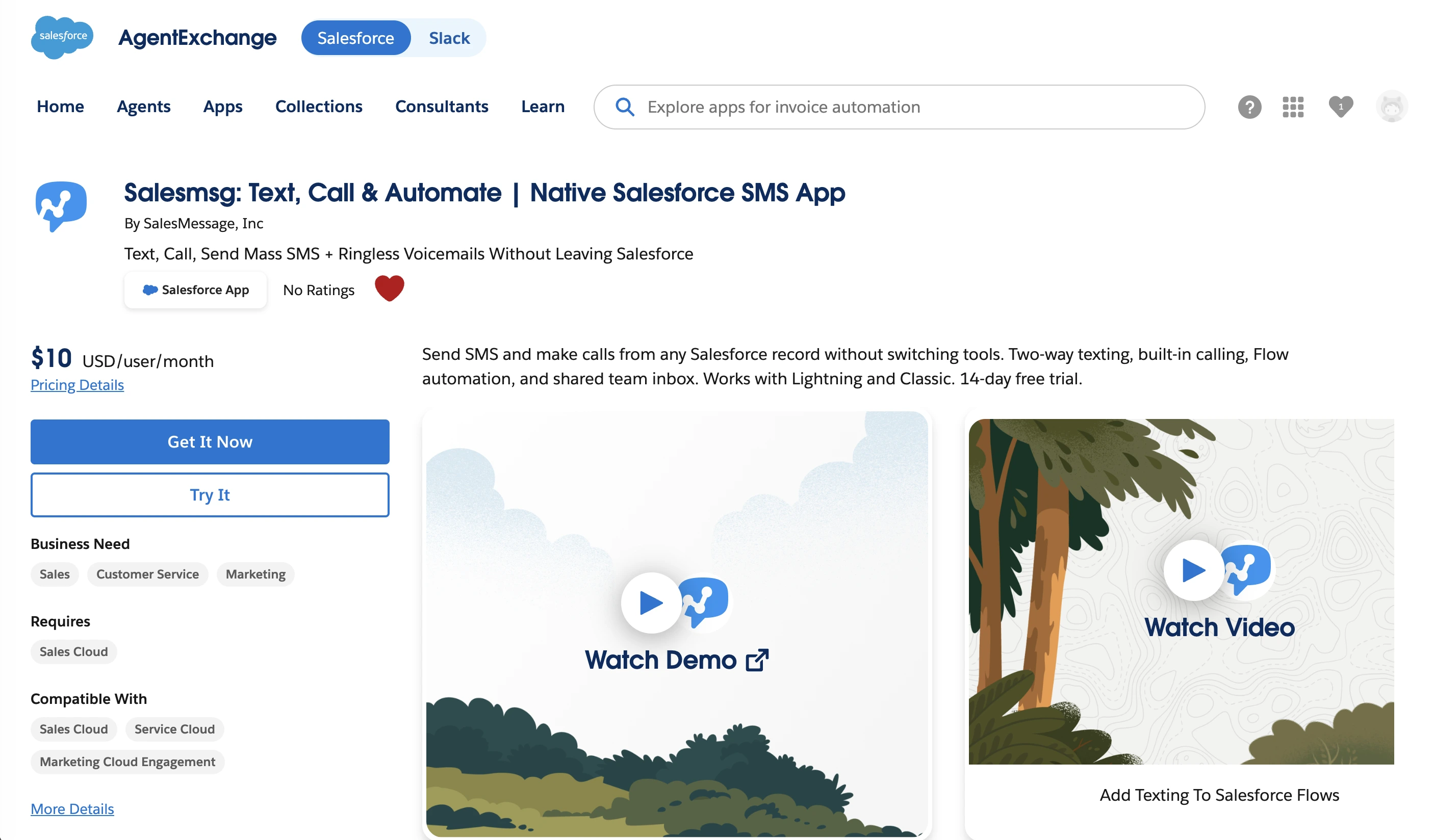
Step 1: Install Salesmsg from the AppExchange
Find the Salesmsg listing on the Salesforce AppExchange and install the package into your org. That one install adds both the texting widget and the native Flow action, so you're not stitching together separate tools to get going.
Step 2: Connect your Salesmsg account
Open the Salesmsg setup screen inside Salesforce and link it to your Salesmsg account and phone number.
This is the handshake that lets texts actually send and sync back to your records, so every message lands on the right contact instead of disappearing into a separate app.
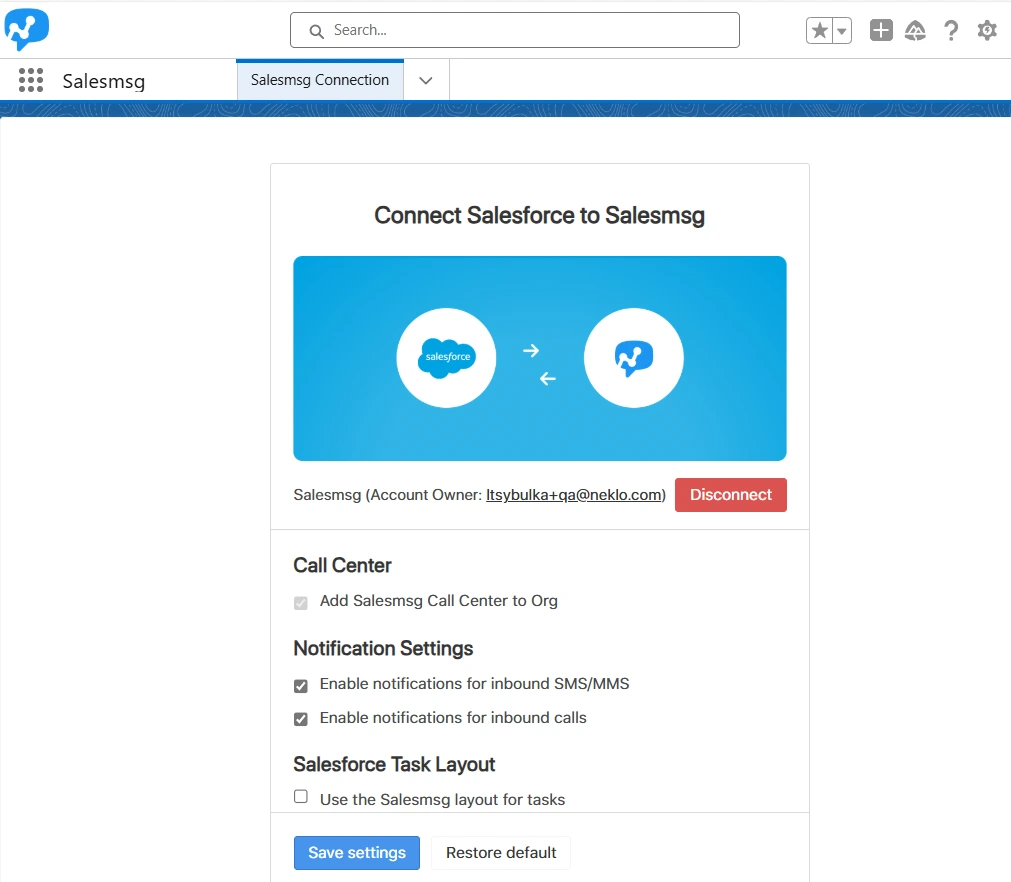
Step 3: Add the widget to your record pages
Drop the Salesmsg component onto your Lead, Contact, and Opportunity Lightning pages. Now any rep can text or call straight from a record, without bouncing between tabs to dig up a conversation history.
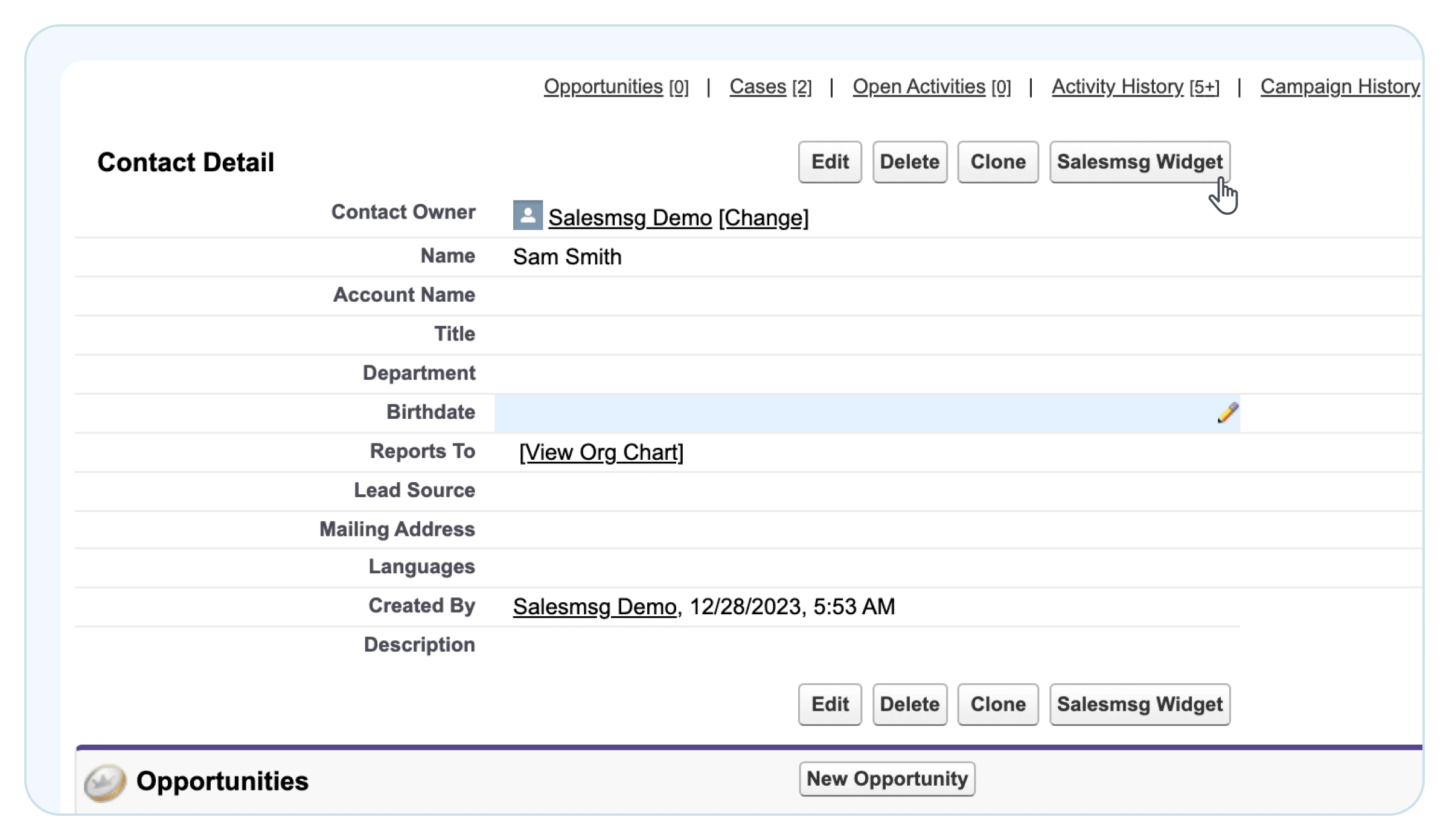
Step 4: Open Salesforce Flow Builder
Create a new record-triggered Flow, or edit one you already run. Set the trigger to the event you want to text on, like "A record is created" on the Lead object, or a stage change on the Opportunity.
This is where you decide exactly when the message goes out.
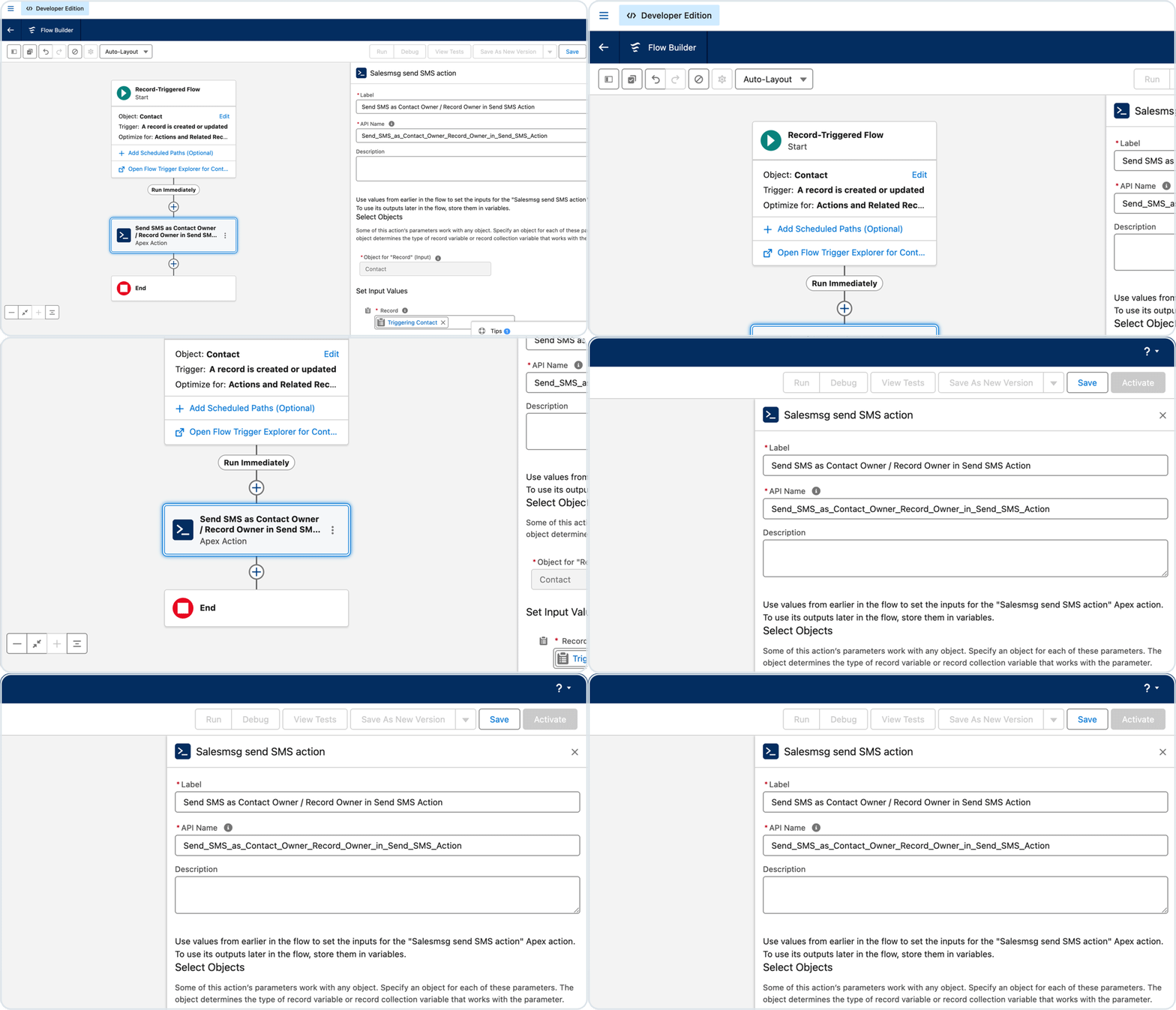
Step 5: Add the Salesmsg SMS action
Inside the Flow, add an Action element and choose the Salesmsg SMS action. This is the part that actually sends the text.
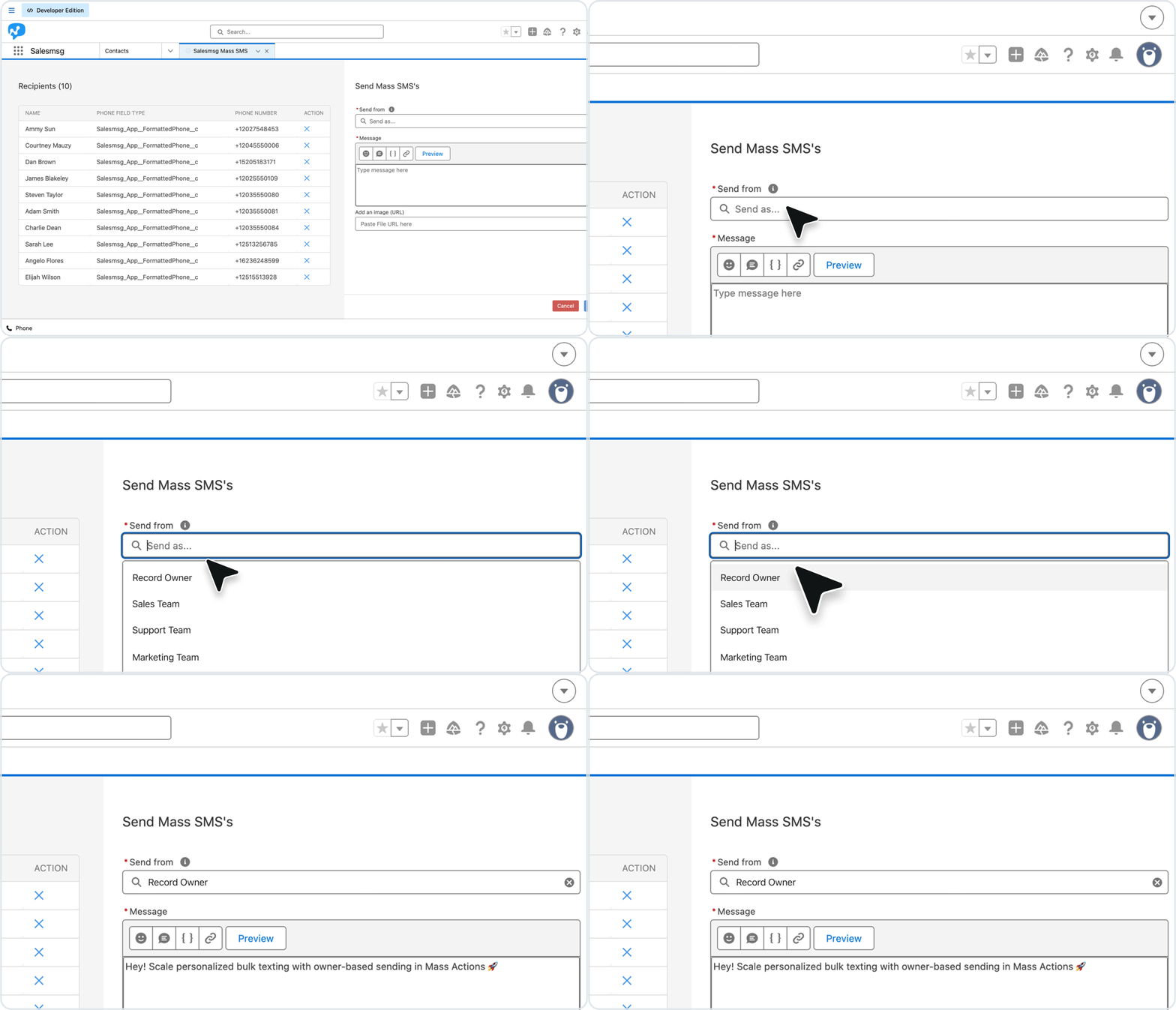
Step 6: Map your fields and write the message
Set the recipient, pick the number you're sending from, and write the message using merge fields like [Name] to personalize it. Keep it under 100 characters where you can, since shorter texts pull the highest reply rates.
Step 7: Test, then activate
For the last step, run it against a test record and confirm the text sends and logs to the Activity Timeline the way you expect. Once it checks out, turn the Flow on, and it runs on every matching record from then on.
No code anywhere in that process, and every step happens inside the tools your team already uses every day.
Compliance Requirements Before You Automate Salesforce Texts
Before you switch anything on, you need to get consent and registration squared away.
None of this is meant to scare you off. Half of businesses rate their compliance concern at 3 or below on a 10-point scale, and most of the work is paperwork you handle once.
Get consent first
TCPA rules require that contacts opt in before receiving automated marketing texts.
Transactional messages tied to a direct request, like an appointment reminder or a reply to an inquiry, have more wiggle room. But you should still keep a record of how and when each contact agreed to be texted.
Salesmsg handles double opt-in and processes opt-outs automatically, so a single STOP reply suppresses that contact everywhere at once.
Register for 10DLC
10DLC registration is required by carriers for business texting in the US.
Our benchmark report looked at 636 business profile submissions and found that the top five rejection reasons accounted for 55% of all failures.
Luckily, every one of them is a documentation issue that’s inside your control.
The two most common fixes are simple:
- Add your legal name to the website footer.
- Submit an IRS SS-4 or 147C letter for your EIN, not a W-9.
Get the paperwork right before you submit, not after. For the full version, read our full compliance guide and our 10DLC compliance breakdown.
Salesmsg vs. Native Salesforce SMS: What's the Difference?
Native Salesforce SMS covers basic inbound messaging and some outbound. For plenty of teams, that's where it ends.
Here's how the features compare, so you can see what you’re missing when you rely on the Salesforce native SMS.
Our benchmark report asked teams what they want most from an SMS platform. The top three answers were ease of use, CRM integration, and two-way messaging.
Native Salesforce SMS is thin on all three. While Salesmsg is built around them.
So if all you ever send is the occasional one-off text, native SMS will do.
But, the moment you want a shared inbox, calling on the same number, and texts that run from any Flow, you need a dedicated app like Salesmsg. You can see what Salesmsg does inside Salesforce for the full feature set.
The Bottom Line on Salesforce SMS Automation
Salesforce text message automation comes down to faster follow-up, so fewer leads slip through the cracks.
When a text goes out the second a lead arrives, a deal moves, or an appointment nears, your team reaches people while they're still paying attention.
The teams that get the most out of it do three things:
- Text new leads in under a minute
- Follow up instead of sending once and stopping
- Pair texts with calls for more than double the engagement
Book a demo today for a live look at how these workflows would work for your company.
Frequently Asked Questions
Can Salesforce send automated text messages natively?
Salesforce offers basic SMS through Service Cloud and Marketing Cloud, but it comes with limits such as restricted message volumes, per-user licensing, and limited automation across all your objects.
Most teams use a dedicated AppExchange app like Salesmsg to get full automation, two-way texting, and native Flow integration without those constraints.
What is a Salesforce Flow SMS action?
It's an action you add to a Salesforce Flow that sends a text as part of the flow, for example, when a Lead is created, a deal stage changes, or a form is submitted.
Salesmsg provides a native version that sends the SMS from your Salesmsg number, logs it to the Activity Timeline, and supports merge fields so each message is personalized.
Do contacts need to opt in before I can automate texts from Salesforce?
Yes, for marketing texts. The TCPA requires opt-in consent before you send those automatically.
Reminders and replies to a direct inquiry get more leeway, though it's always safest to keep a record of how each contact agreed to be texted. Salesmsg tracks opt-ins and opt-outs for you, so an unsubscribe applies across every workflow.
How does Salesmsg compare to native Salesforce SMS?
Native Salesforce SMS handles basic inbound messaging and some outbound, but it doesn't give you a shared team inbox, texting combined with calling, or full Flow automation across all objects.
Salesmsg adds all of these and embeds directly into Lightning and Classic, so your team never has to leave Salesforce to text or call.
Which Salesforce objects can I send automated texts from with Salesmsg?
Salesmsg supports texting from Leads, Contacts, Opportunities, Accounts, Cases, Campaigns, Person Accounts, and Custom Objects.
The widget appears on any record page, and the Flow SMS action can run from any object that supports Flows.
Does Salesmsg log automated texts to the Salesforce Activity Timeline?
Yes. Every text sent through Salesmsg, whether manual or automated, is automatically logged in the Activity Timeline on the related record, with no additional setup required.
Call recordings and transcripts also sync to the Timeline if you use Salesmsg for calling.
How long does it take to set up Salesforce text message automation with Salesmsg?
Most teams turn on their first automated workflow in under an hour.
You install the package from the AppExchange, connect your account, and then use Salesforce Flow Builder to add the Salesmsg SMS action to any new or existing flow.