How to Build a Drip Campaign in HubSpot (With SMS)



_How%20to%20Build%20a%20Drip%20Campaign%20in%20HubSpot%20(With%20SMS).webp)

A drip campaign in HubSpot sends automated messages over time, triggered by a contact's behavior or a date. A new lead fills out a form, gets a welcome message, a follow-up two days later, and a nudge a week after that. That's a drip campaign.
With Salesmsg connected, you can drop text messages into those same workflows, triggered by the same enrollment rules you already use for email.
Below, you’ll learn what drip campaigns are, why you should add SMS to your drip campaigns, and how you can do it easily with Salesmsg and HubSpot working together.
What Is a Drip Campaign in HubSpot?
In HubSpot, a drip campaign lives inside the Workflows tool. You set an enrollment trigger, then create a sequence of messages with time delays in between them.
When a contact matches the trigger, HubSpot enrolls them and automatically sends each message in order, according to the delays you set up.
These are the main pieces of a drip campaign:
- Enrollment trigger. Selects who gets into the sequence.
- Action steps. Send the messages.
- Delays. Control the message timing.
- If/then branches. Change the path based on what the contact does.
With HubSpot, you’ll send emails by default using the action steps. What Salesmsg does is add an SMS action in the same builder. So you can text a new lead within a minute, wait a day, send an email, wait again, then send a final text reminder.
This lets you get a lot more value from campaigns you’re already running.
New to HubSpot automation? Our HubSpot workflow examples post covers the basics.
Why Add SMS to Your HubSpot Drip Campaign?
It's simple, really. Emails get ignored, and texts get read.
Here's how the two channels compare, according to our SMS Benchmark Report:
- Open rate: 98% for SMS, with 90% read within three minutes, versus 22% for email.
- Click-through on links: 45% for SMS, versus under 5% for email.
- Reply rate within 24 hours: 11% for SMS, versus low single digits for most sales emails.
A drip campaign is built to get a response over several touches. Email-only drips lose most of those touches to unopened inboxes. Adding one or two texts puts your message somewhere people actually look. Our TruFinCo case study shows what that shift did for one HubSpot team's revenue.
There's a benefit in speed to lead too. Our research found 57% of teams send their first text to a new lead within 30 minutes, and 14% have automated it to under a minute.
A drip campaign that opens with an automated text reaches the lead while they're still on your site, not the next morning after they decided to go with a competitor.
Already using HubSpot? You can connect Salesmsg in under five minutes.
What You Need Before You Start
There are three things you’ll need before you start creating your first drip campaign in HubSpot.
1. A HubSpot account with Workflows enabled
The Workflows tool requires a Professional or Enterprise plan in Marketing, Sales, or Service Hub. HubSpot's Free and Starter tiers don't include it, so confirm your plan first.
2. A Salesmsg account connected to HubSpot
Salesmsg is a texting and calling platform that installs as a native HubSpot app.
To connect it, log into Salesmsg, open Settings, then go to the App Marketplace, and click to connect your HubSpot account. Salesmsg then sends you to HubSpot to authorize.
Once it's connected, the SMS action appears in the workflow builder.
3. A contact list with opt-in status
Before anything goes out, make sure every contact has actually given you permission to be texted.
The easiest place to start is your existing opt-ins, so pull a segment of people who signed up through a web form, a checkout flow, or a text-to-join keyword. And if you're unsure your opt-in language is solid, then check our guide to SMS marketing compliance first.
How to Build an SMS Drip Campaign in HubSpot: Step by Step
Follow the steps below to build your first SMS drip campaign using HubSpot and Salesmsg.
Step 1. Create a New HubSpot Workflow
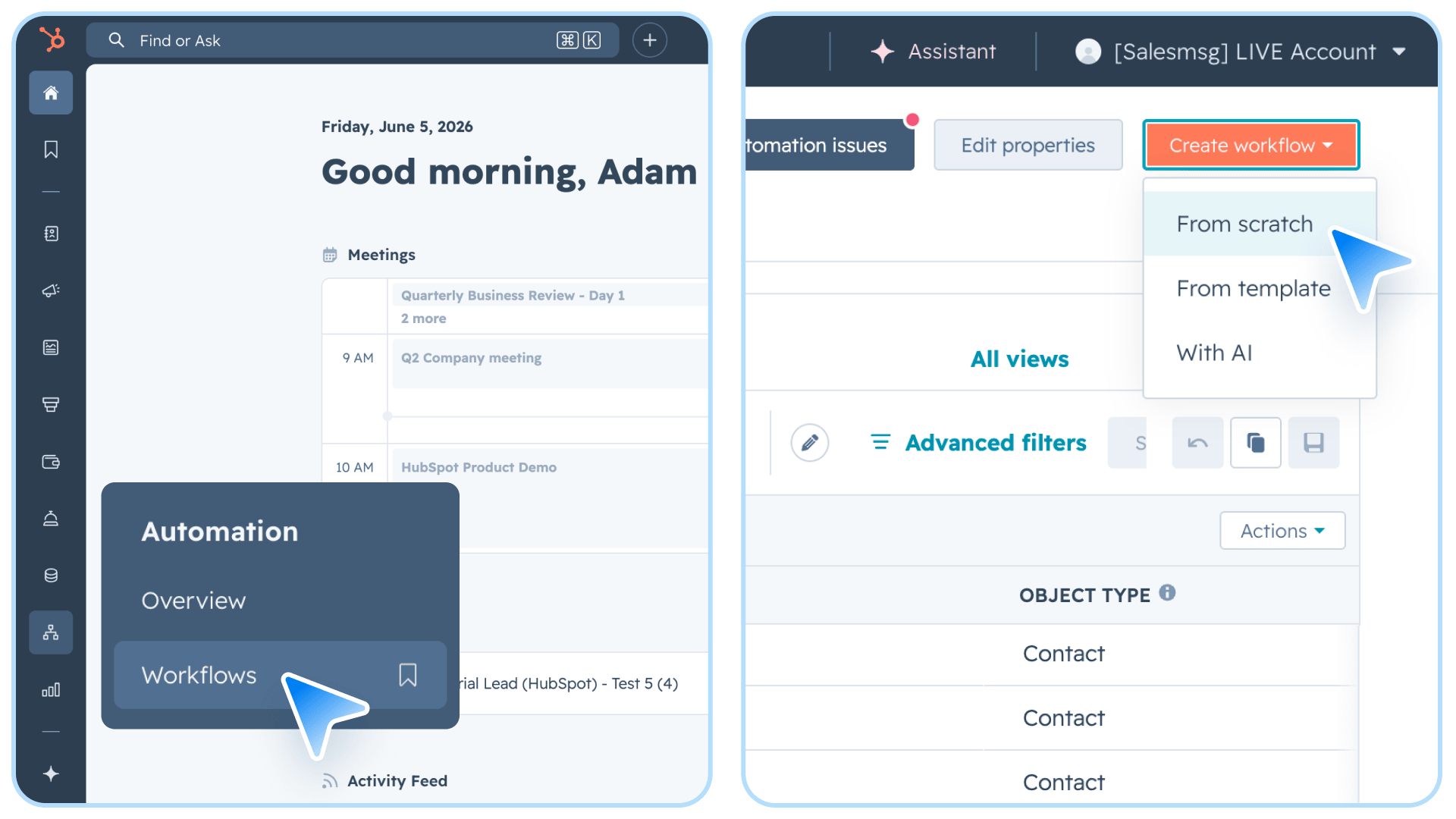
Once you’re inside your HubSpot dashboard, go to Automation, then Workflows, then Create workflow. HubSpot will ask how you want to begin, so choose Start from scratch and set the type to contact-based, since your drip campaign enrolls and acts on contact records.
Then, give it a name you'll recognize later, like "New Lead SMS Drip."
Step 2. Set Your Enrollment Trigger
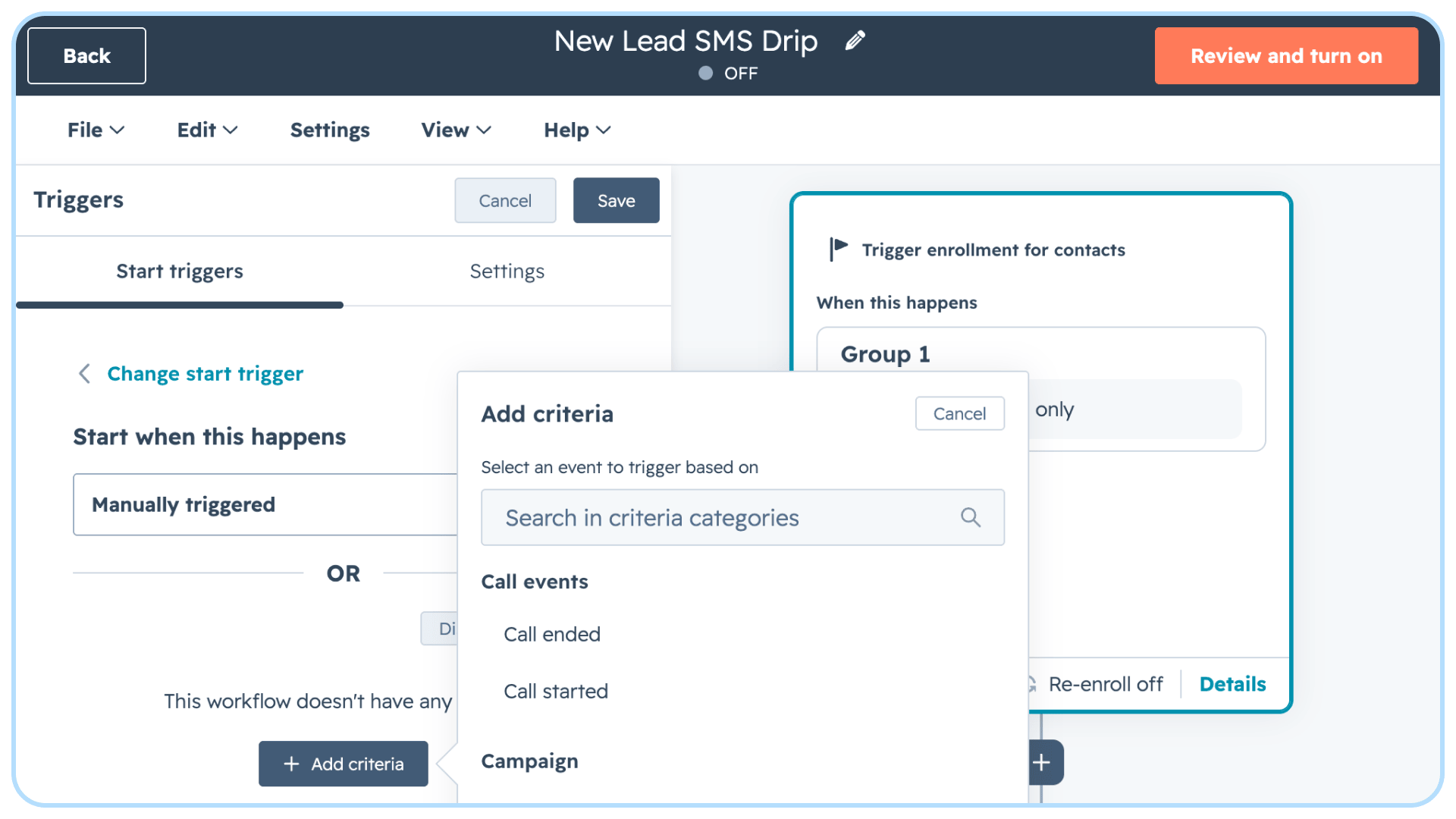
The enrollment trigger decides who enters the drip sequence, so click the enrollment trigger box and pick the condition that matches your goal.
Here are some of the most common:
- New lead drip: a form submission.
- Trial drip: a lifecycle stage change.
- Stalled deal drip: a deal that’s sat in one stage past a set number of days.
Whatever you choose, keep it focused. A drip sent to 50 hand-picked leads at the right stage will outperform a blast to 5,000 random contacts. For more on choosing who to target, our 7 secrets to lead management with HubSpot post goes deeper.
Step 3. Add a Salesmsg SMS Action
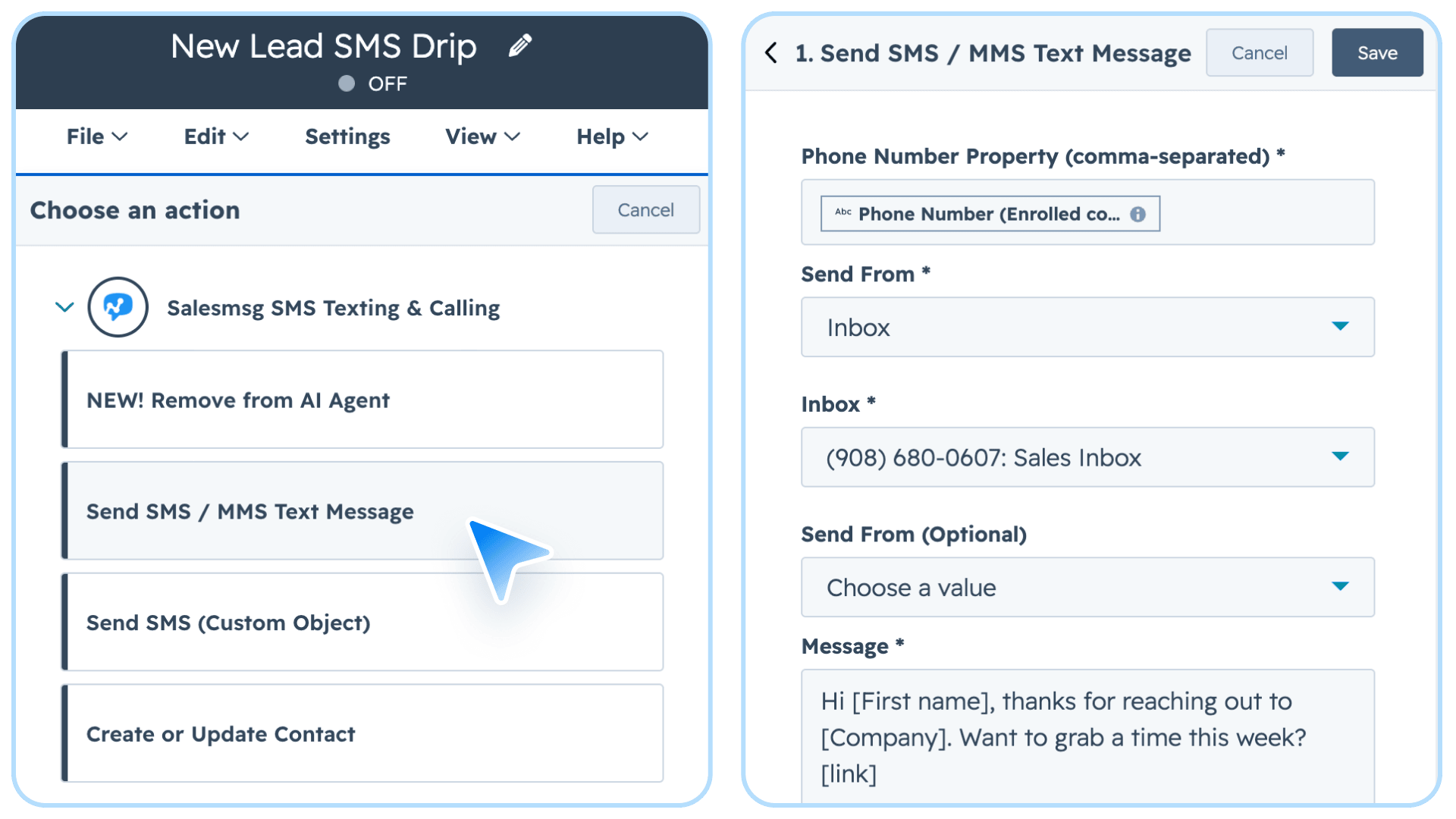
This is the step that turns an email drip into a text drip.
Add an action, search for Salesmsg, and select Salesmsg: Send SMS. The action works in every HubSpot workflow type, so you'll see it whether your workflow is contact-based, deal-based, or ticket-based.
From there, you set three things:
- Phone Number Property. Where the text goes. Use a HubSpot token like the contact's mobile number, or a hard-coded number.
- Send From. Which number it comes from, whether that's a specific number, a shared or Smart inbox, the contact owner's number, or a short code.
- Message. Write it, and pull in HubSpot properties as merge fields for the contact's name or other CRM data.
For the message itself, write like you would to a friend. Use contractions, keep it to one clear ask, and stay under 100 characters, since our benchmark data shows response rates drop with every 100 characters you add.
Here's a sample first message:
Hi [First name], thanks for reaching out to [Company]. Want to grab a time this week? [link]
That runs about 95 characters with a short link, well inside the limit.
For more on wording, see our tips for writing high-converting SMS messages in HubSpot.
Step 4. Add an Opt-Out Path
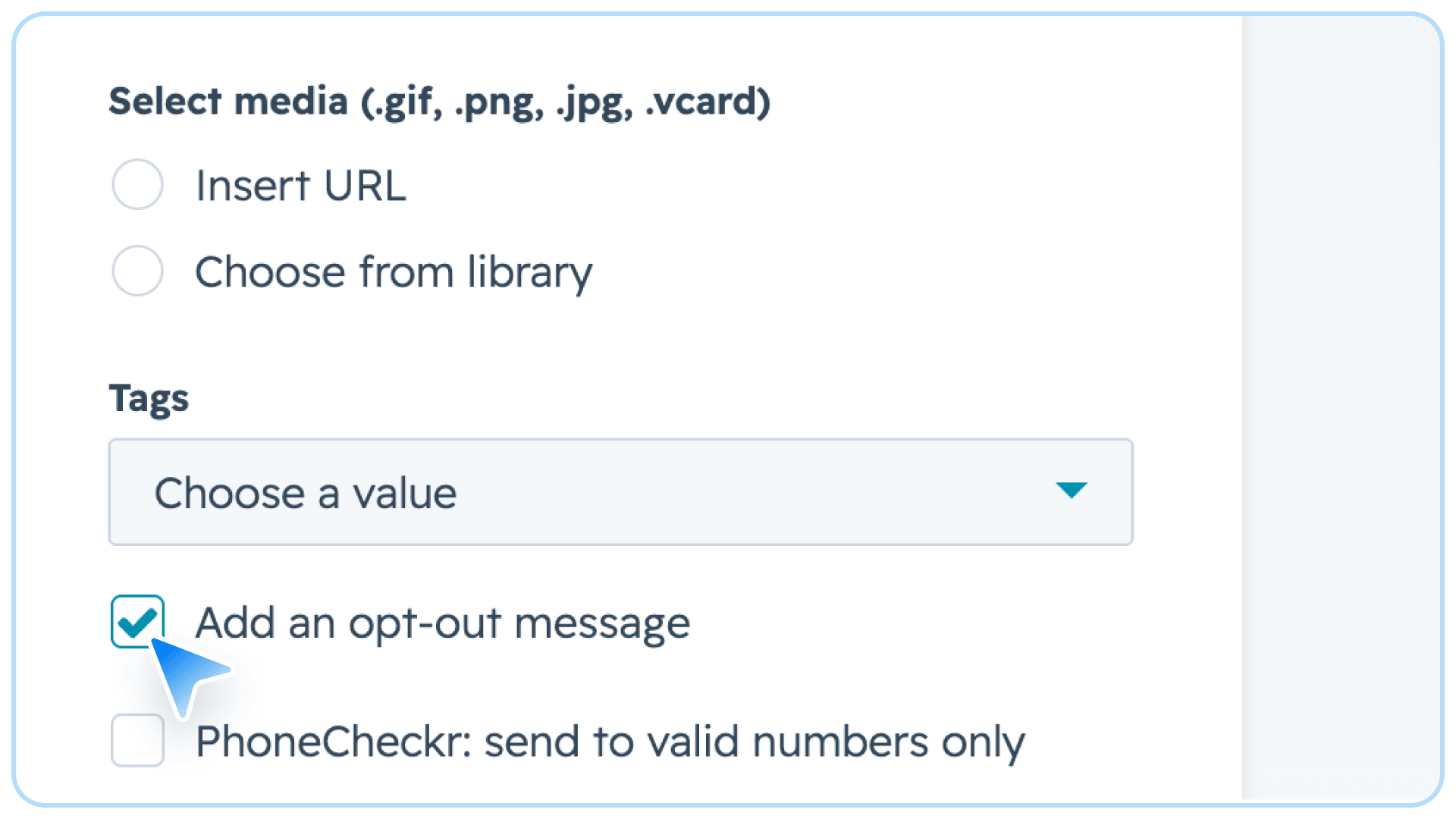
An important note on compliance: Every contact needs a clear way to stop hearing from you, and you cannot keep texting someone who has opted out. This step is not optional.
Two things cover you here:
- Tick the "Add an opt-out message" checkbox in the Salesmsg: Send SMS action. It appends "Reply STOP to end" to your text.
- Salesmsg processes STOP replies automatically and updates the opt-out status on the HubSpot contact property, so those people drop out of future sends.
For extra safety on a longer drip campaign, add an if/then branch before each SMS step that checks opt-out status and ends the workflow for anyone who has unsubscribed.
This keeps your sends in line with the TCPA, which requires consent before marketing texts and an easy way out. Our SMS marketing compliance guide walks through the rest of the rules.
Step 5. Set Time Delays Between Messages
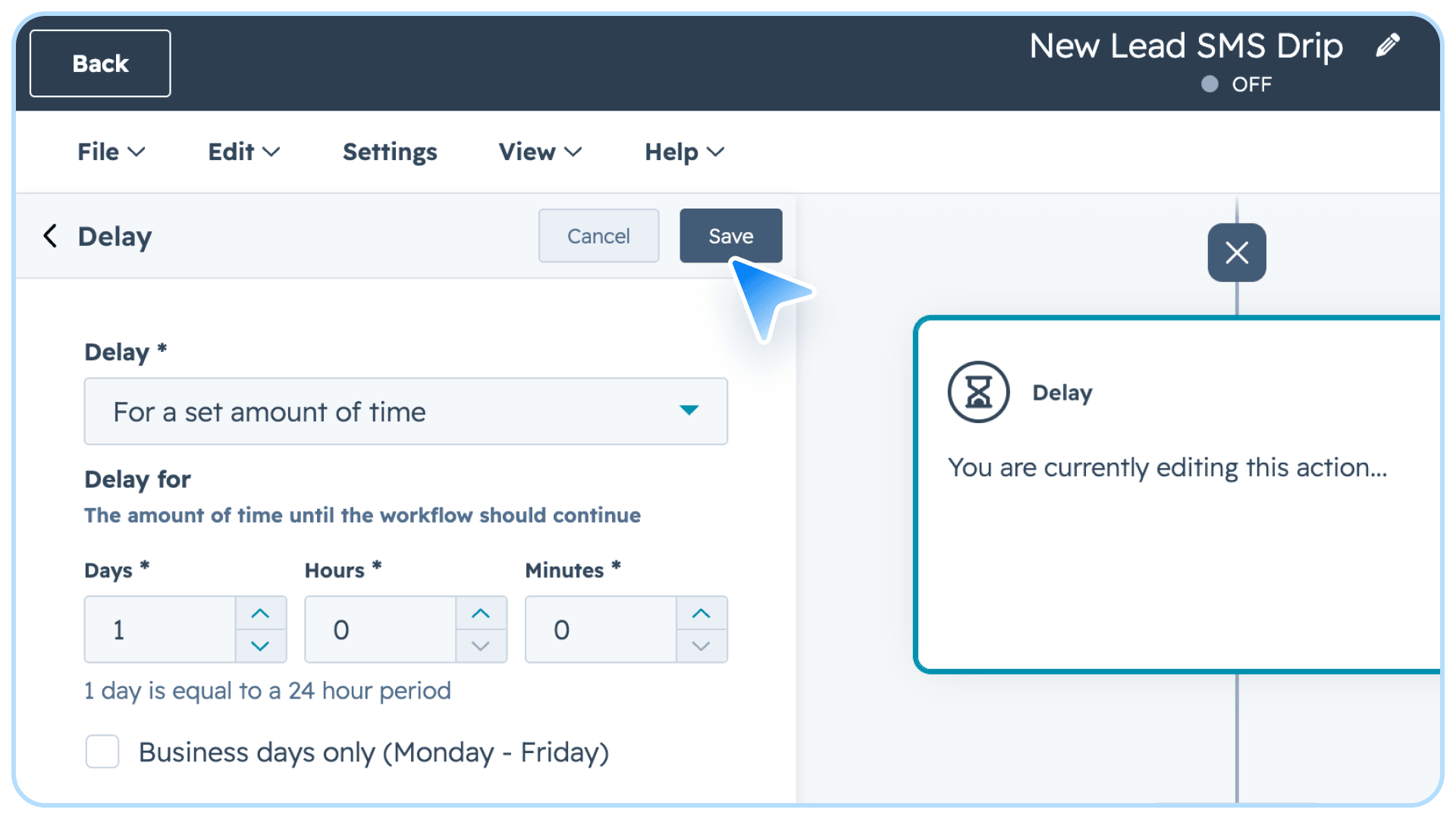
Between each message, add a Delay action so contacts don't get everything at once.
For SMS drips, 24 to 48 hours between messages works well. Our report puts the best-performing sequence at four to seven messages, so spread them across a one to two week window instead of bunching them together.
Step 6. Activate and Monitor the Workflow
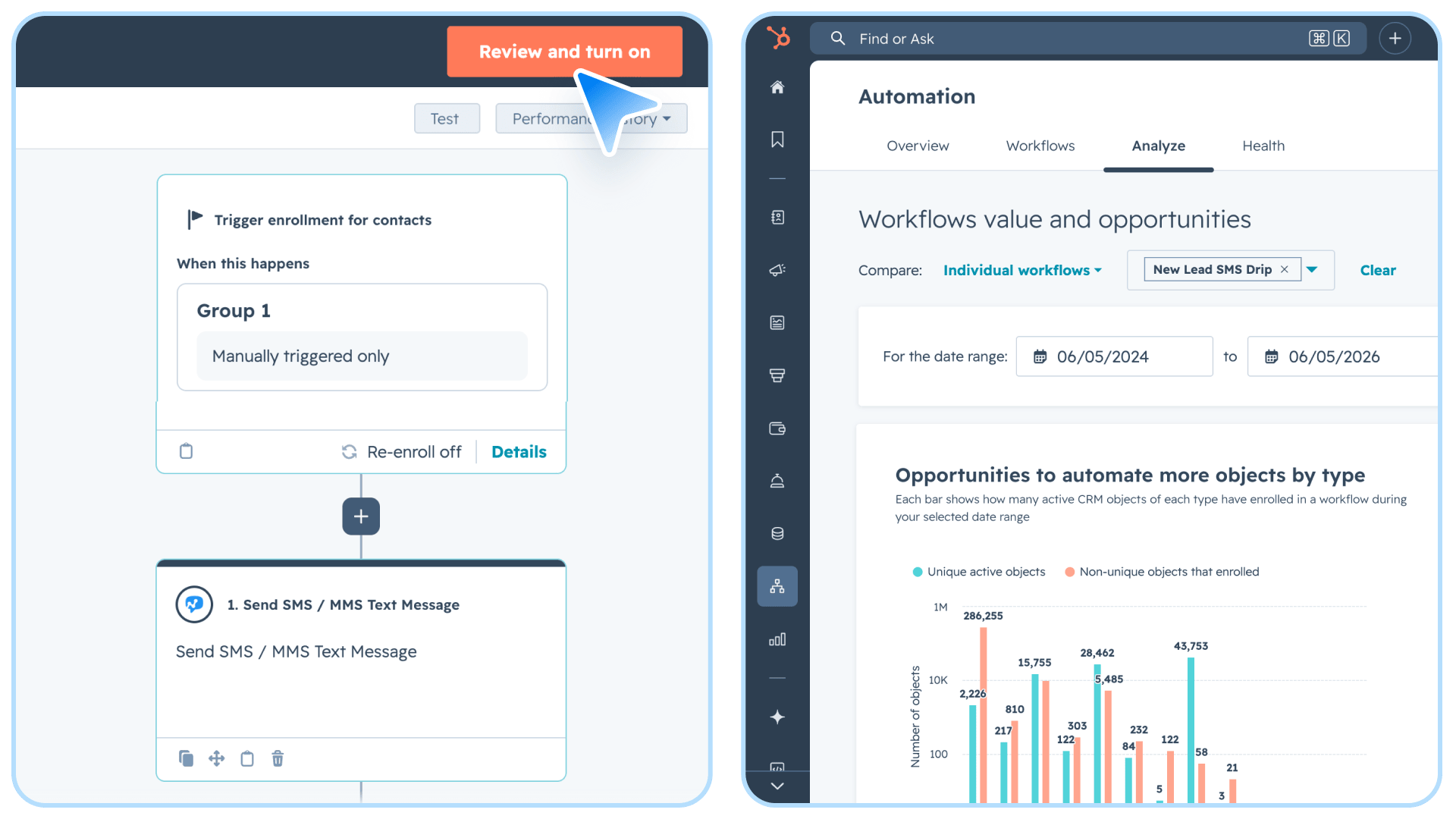
When the sequence is built, click Review and publish in the top right. HubSpot will ask whether to enroll contacts who already meet the trigger or only those who qualify going forward.
For a brand-new drip, enrolling only future contacts is usually the safer call, so you don't text your whole existing list at once. Then, turn the workflow on.
After it's live, keep an eye on how it performs. Salesmsg reports delivery, response, click-through, and opt-out rates, and those numbers flow straight into your HubSpot reports.
Watch which message pulls the most replies and which one loses people, then adjust the timing and copy from there.
Ready to see this in your own account? Start free with Salesmsg inside HubSpot.
3 HubSpot SMS Drip Campaign Examples
Here are three drips you can build today. Each mixes SMS and email, with timing pulled from benchmark data.
Sales Outreach Drip (New Lead Follow-Up)
For inbound leads who fill out a form. The goal is to book a meeting before a competitor responds.
Trial or Onboarding Drip
For new trial signups. The goal is activation, getting them to the first real action.
Re-engagement Drip
For old leads who opted in but went quiet. The goal is to revive or cleanly close.
Want to see one of these running in your account? Book a demo.
Tips for Better HubSpot Drip Campaigns
A few rules hold up across every drip you build.
- Keep messages short. Texts under 100 characters get the highest response rates in our platform data. Explaining everything in one message usually costs you the reply.
- Send in the right window. Replies come back fastest between 10 AM and 12 PM. For time-sensitive texts, set the delay so they land in that window.
- Lead with who you are. Contacts may not recognize your number, so start with your name and company to keep the message from reading as spam.
- Build the follow-up in. 42% of replies come from follow-up messages, not the first text. A drip that stops after one touch leaves nearly half its conversations unfinished.
- Segment before you enroll. A targeted drip to the right 50 people beats a generic one to 2,000.
For more tips to improve your SMS drip campaigns see our post on SMS marketing best practices.
Your HubSpot Drip Campaign Shouldn't Stop at Email
A HubSpot drip campaign gets stronger the moment you stop treating it as email-only. You already have the workflow, the triggers, and the contact data, so adding SMS is really just dropping a text step into the sequence you'd have built anyway.
The payoff shows up in the read and reply rates. Texts get opened in minutes, links get clicked at nine times the email rate, and nearly half your replies come from the follow-up texts most teams never send.
So start with one campaign. The sales outreach drip above is the fastest to set up and the easiest to measure, and once it's running, you build the next one.
Start a 14-day free trial of Salesmsg and build your first SMS drip campaign in HubSpot today.
FAQs
Does HubSpot have a native drip campaign tool?
HubSpot doesn't have a product called drip campaigns, but its Workflows tool does exactly the same thing. You can build automated sequences using enrollment triggers, time delays, and conditional branches, and adding Salesmsg lets you send texts right alongside your emails.
Can you send SMS as part of a HubSpot drip campaign?
Yes. With Salesmsg connected to HubSpot, you add an SMS action directly inside any Workflow. That lets you mix texts and emails in the same drip and trigger texts off the same enrollment rules you already use.
How many messages should a HubSpot drip campaign have?
For B2B sales drips, three to five touches over 7 to 14 days is a solid starting point. SMS sequences run shorter than email because of the higher open rates. The benchmark data points to four to seven messages as the range where follow-up pays off before diminishing returns.
How do I handle opt-outs in a HubSpot SMS drip?
Salesmsg automatically processes STOP replies and updates the contact's opt-out status in HubSpot. You can also add an if/then branch that checks opt-out status before each text goes out, so anyone who unsubscribed drops out of the sequence.
What's the difference between a HubSpot Sequence and a HubSpot Workflow drip?
Sequences are 1:1 sales touchpoints sent from a rep's inbox, built for manual enrollment. Workflows are automated and enroll contacts in bulk based on triggers. For drip campaigns, Workflows are the right tool, and the Salesmsg SMS action lives in Workflows.
Does Salesmsg work with all HubSpot plans?
Salesmsg integrates with HubSpot's Marketing Hub, Sales Hub, and Service Hub. The native Send SMS action runs inside HubSpot Workflows, which require a Professional or Enterprise plan. Check the HubSpot App Marketplace for current compatibility, and see our best HubSpot SMS integrations roundup if you're comparing options.

.png)