How to Send a Timed Text on Any Phone



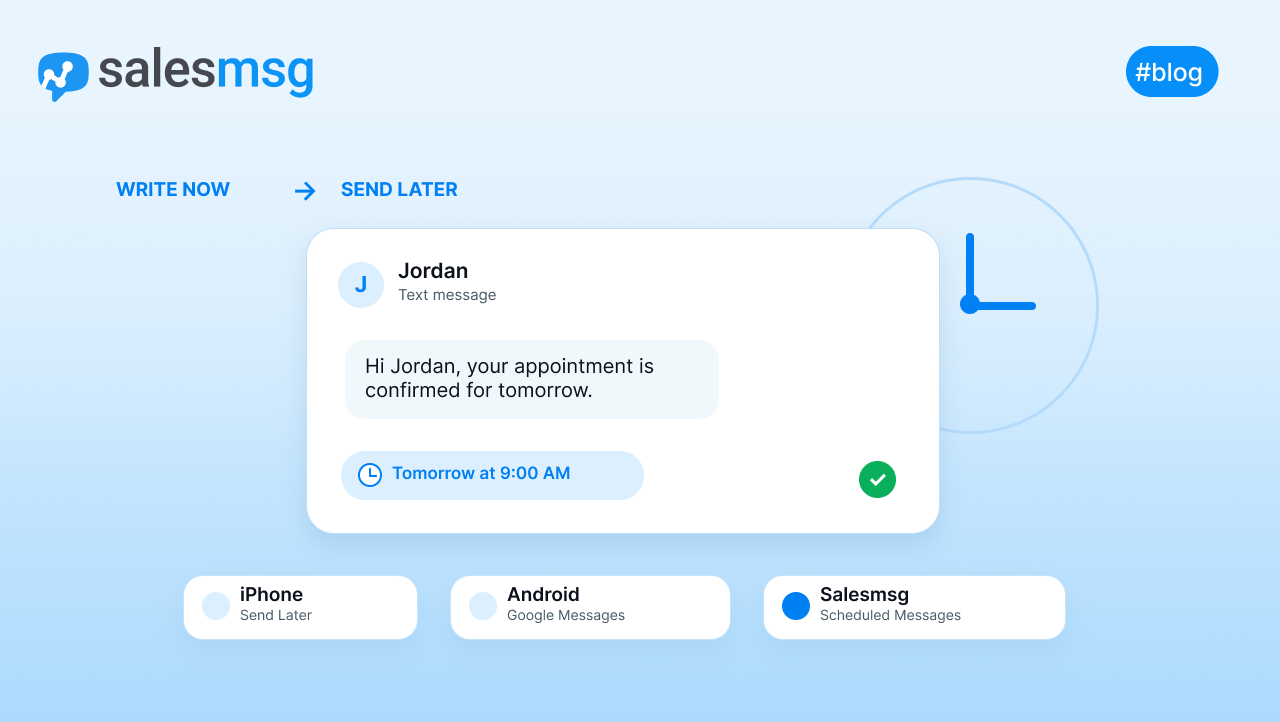

You can send a timed text by using the built-in Send Later feature on iPhone, the scheduling option in Google Messages on Android, or a business texting platform like Salesmsg that ties scheduled sends to CRM records and team workflows. The right method depends on whether you need a single personal reminder or a repeatable business process.
Why timing your texts matters
A text that arrives at the wrong moment gets ignored. The same message sent when someone is free to respond converts, gets a reply, or prompts an action. That gap between wrong time and right time is exactly what scheduled texting solves, whether you are reminding a friend about plans or running a sales follow-up sequence for 500 leads.
The mechanics are the same across iPhone, Android, and business platforms: write the message now, choose when it goes out, and let the system handle delivery. The difference is scale and what you can tie the timing to. On a phone, timing is manual and personal. On a business platform like Salesmsg, timing connects to CRM events, deal stages, appointment records, and team workflows.
How to schedule a text on iPhone
iPhone gives you two paths. Send Later handles one-time messages. Shortcuts handles recurring ones.
Send Later for one-off messages
Open Messages, start or open a conversation, tap the plus button next to the text field, then choose Send Later. Set the date and time you want the message to go out, type your message, and confirm the send. The message sits in the thread with a scheduled tag until it fires.
A useful habit: review the scheduled time before you confirm, especially when the message crosses time zones or involves a last-minute change. The queued message depends entirely on the date and time you chose in the UI.
Shortcuts for recurring timing
For messages that need to go out on a regular cadence, open the Shortcuts app, go to the Automation tab, and tap Create Personal Automation. Choose Time of Day, set the send time, then select whether the automation should repeat daily, weekly, or monthly. Add the Send Message action, set the recipient and message, then continue through the prompts.
One setting to check before you finish: make sure Ask Before Sending is disabled if you want the automation to fire on its own. With it on, the phone waits for confirmation and the message only goes out if you manually approve it, which defeats the purpose of automation.
The simple rule: use Send Later when you need to schedule once. Use Shortcuts when the same message should go out repeatedly.
How to schedule a text on Android
Android scheduling lives inside Google Messages. The exact interface varies slightly by device and app version, but the flow is the same across most builds.
Long-press the send button
Open Google Messages, compose your text, then long-press the Send button. A scheduling menu appears with preset times and a custom date-and-time option. Pick when you want it to go out and confirm the send.
Some Android builds show a three-dot overflow menu in the composer instead, with a Schedule Message option inside it. The result is the same. If you can't find it, check that Google Messages is updated to the latest version — older versions sometimes don't expose the scheduling option.
What to check before relying on it
Android scheduling runs at the device and app level, not through a server. Google Messages needs to be installed, updated, and able to run normally when the scheduled send is due. Before you trust a time-sensitive message to the native scheduler, verify the recipient, the timestamp, and that the app is current.
How the three native scheduling methods compare
Each method solves a different version of the same problem. Here is how they stack up on the details that matter.
Native scheduling handles individual timing well. It does not manage lists, CRM milestones, compliance opt-outs, or team visibility. That is where a business texting platform takes over.
How Salesmsg handles timed texts for sales and support teams
When a business needs scheduled texts to reach hundreds of contacts, follow CRM events, and stay visible to the whole team, phone-native tools run out of runway. Salesmsg is built for that layer.
What each Salesmsg feature does for timed sends
Scheduled Messages. Write the text, choose the send time, and Salesmsg queues it inside the conversation thread. You and your team can see the queued message before it fires, and you can edit, reschedule, or cancel from the same view. If the contact replies before the scheduled time, the Stop on Response option cancels the message automatically so a stale follow-up doesn't go out after the conversation has already moved.
Broadcasts. When the same timed message needs to reach hundreds or thousands of contacts at once, Broadcasts schedule a bulk send with merge fields, segment filters, and delivery pacing. One broadcast replaces what would take dozens of individual phone schedules, and every reply comes back into the shared inbox rather than a single person's phone.
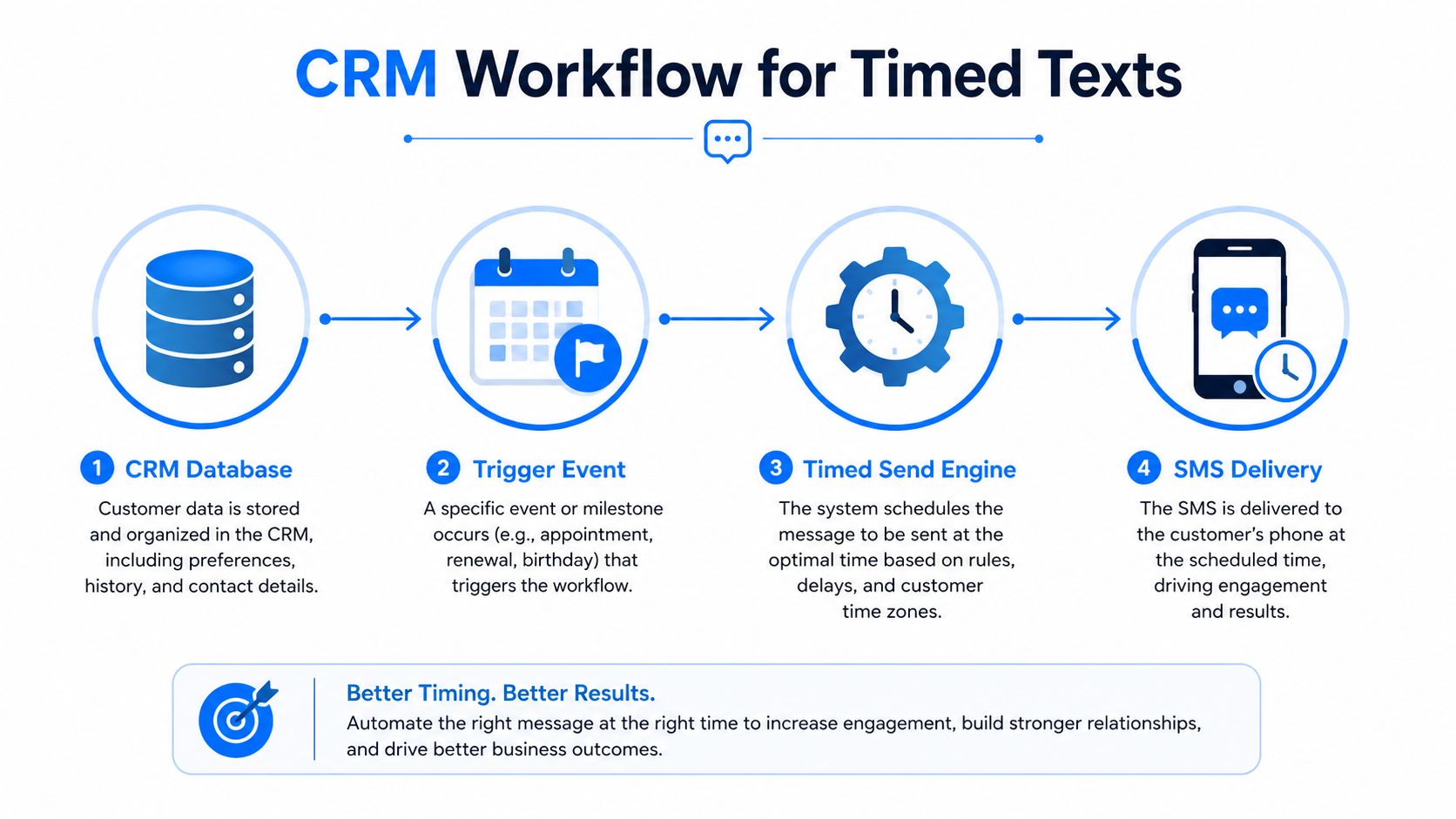
Workflows. Drag-and-drop automation sequences with delays, conditions, and dynamic date triggers. A workflow fires a timed text when a deal stage changes, a renewal date approaches, or an appointment is missed. The timing follows the CRM event rather than a manual calendar entry.
AI Agents. When a contact replies to a timed text outside business hours, AI Agents respond using your knowledge base, qualify leads, and book meetings through Calendly. The scheduled message starts the conversation, and the AI Agent keeps it going without requiring a human to be online.
Shared Team Inbox. Every scheduled and sent message logs in a shared inbox the whole team can see. Replies are visible, searchable, and synced to HubSpot, Salesforce, or whichever CRM you use. No more wondering whether someone followed up.
Why the CRM connection changes the game
The difference between phone-based scheduling and CRM-based scheduling is what triggers the send. On a phone, you set the time. In Salesmsg, a contact record, a deal event, a lifecycle stage, or a missed appointment sets the time. The message follows the data instead of your memory.
"I send a text that says, 'I'm not a bot. I'm not AI. I'm a real human.' Same area code, real person, and they actually pick up their phone. Instead of calling first and following up, we start with the text. We start with Salesmsg."
For teams that want to see the mechanics, the scheduled SMS guide walks through how scheduled sends work inside Salesmsg. You can also request a demo to see the workflow automation in action.
Best practices for timed texts that actually land
Scheduling the message is the easy part. Getting the timing right takes a bit more thought.
Schedule in the recipient's timezone
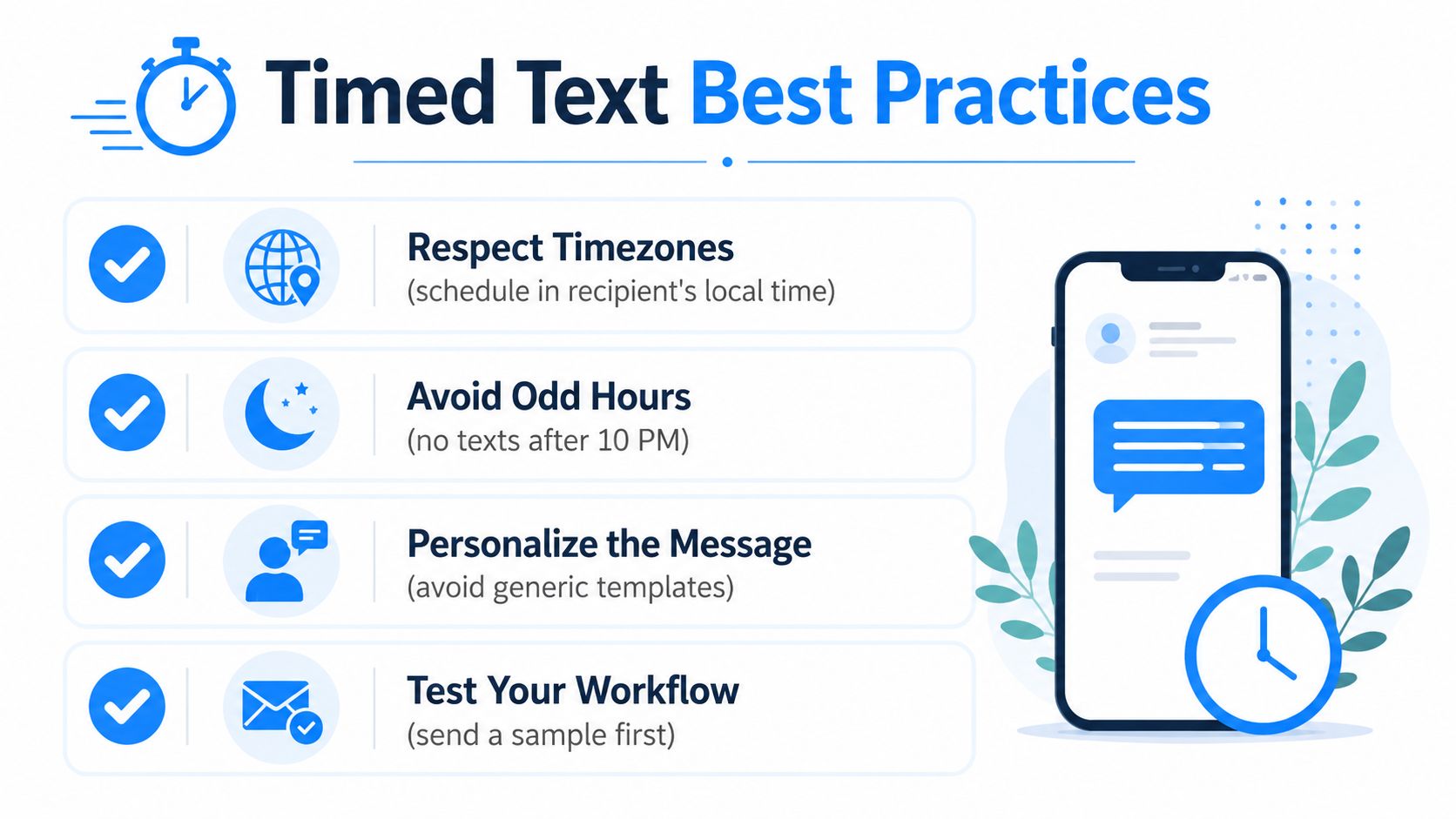
A reminder that lands at a reasonable hour in one timezone can arrive in the middle of the night in another. Schedule around the recipient's local time, not yours. Business texting platforms like Salesmsg include timezone handling and quiet-hours settings so messages don't fire outside acceptable windows.
Preview before confirming
Check the recipient, the message text, and the send time before you lock it in. This is where most scheduling errors happen: wrong contact selected, time entered in the sender's timezone, message text copied from an old template.
Check compliance before you automate
For business texting, contacts need to have opted in and there needs to be a clear opt-out path. Salesmsg includes TCPA opt-out management, double opt-in controls, and 10DLC registration. For healthcare teams, HIPAA-compliant messaging is also available. Check Salesmsg pricing to see which compliance features are included at each plan level.
Review your scheduled queue regularly
A message that made sense when you queued it might not make sense a week later if the conversation has moved on. Checking your scheduled queue every few days catches stale messages before they go out at an awkward moment.
Troubleshooting: why a timed text didn't send
Most failures come from a short list of causes.
The app was closed or the device went offline. Native phone scheduling runs on-device. If Google Messages or the iPhone is offline when the send is due, the message may not go out. Reopen the app, confirm the message is still queued, and reschedule if needed.
Wrong timezone. The message fired at the right time in your timezone, not the recipient's. Check local time before scheduling any message intended for someone in a different region.
Carrier filtering. For business sends on unregistered numbers, carriers may silently filter messages without notifying you. Salesmsg walks every customer through 10DLC registration during onboarding specifically to prevent this.
An OS update interrupted a Shortcuts automation. Major iPhone updates sometimes reset automation permissions. After a significant update, open Shortcuts and confirm that personal automations are still set to run without asking.
For one-off personal reminders, native phone tools are usually enough. For anything tied to a CRM record, a list of contacts, or a compliance requirement, a business texting platform is more reliable. That is the point where scheduling stops being a phone feature and becomes part of your workflow infrastructure. If you need to send to a list rather than one person, the mass text guide covers how that works.
If you are ready to move from personal phone scheduling to CRM-triggered, team-visible scheduled sends, see Salesmsg in action. Scheduled Messages, Broadcasts, Workflows, and AI Agents are all available in a single platform, connected to the CRM you already use.


_What%20Is%20Call%20Forwarding_%20A%202026%20Guide.webp)