

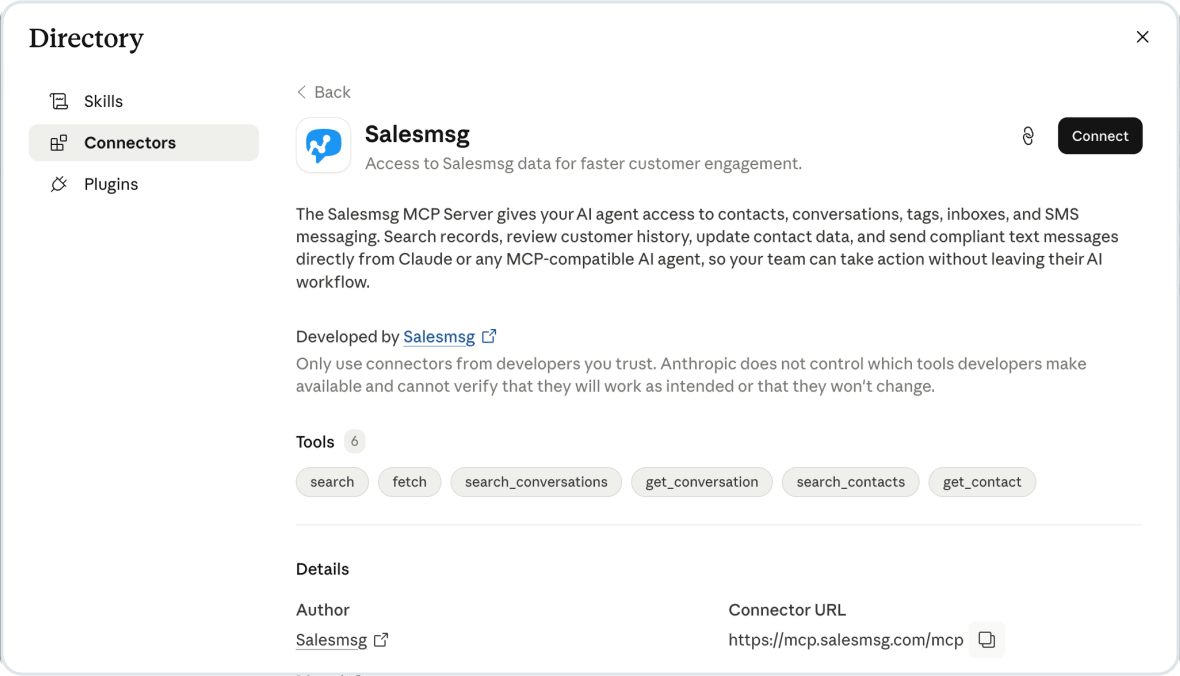
Salesmsg MCP Tools let you connect your Salesmsg account to Claude Web, Claude Desktop, or any MCP-compatible AI agent. Once connected, the agent can search and update contacts, pull full conversation details, apply tags, and send text messages using natural-language commands.
.svg)
The Salesmsg MCP Server exposes the capabilities available to an MCP-compatible client after it is connected to Salesmsg. Actions run against the connected Salesmsg account through the Salesmsg Public API.
Once the MCP server is connected to your AI agent, you can:
.svg)
The MCP server works with any MCP-compatible AI agent. Confirmed clients:
Full install instructions and configuration examples live in the GitHub repository: github.com/salesmessage/ContactMCP
.svg)
Installation instructions, configuration examples, and supported environment variables live in the GitHub repository.
.svg)
Once connected, your agent can manage contacts, search conversations, apply tags, and send text messages using plain language commands, without opening the Salesmsg app.
Create a Salesmsg account
Open Claude Web or Claude Desktop
Go to Settings and select Connectors
Click the + icon to add a new connector
Enter Salesmsg as the connector name
Enter https://mcp.salesmsg.com as the Remote MCP Server URL
Click Add
Sign in with your existing Salesmsg credentials when prompted
Authorize the connection
What to expect
Your agent authenticates once and stays connected.
All actions run through your existing Salesmsg account and inboxes.
Opt-out compliance is handled automatically on every SMS send.
Contact updates apply only to the fields you mention. Other fields stay unchanged.
.svg)
After setup, your AI agent can access the Salesmsg tools listed below. Describe what you want in plain language — the agent will choose the appropriate tool.
.svg)
The MCP server runs against the Salesmsg Public API and inherits its limits.
Rate limit: 60 requests per minute, global.
Exceeding the limit returns HTTP 429.
The server reflects API errors back to the client with the original status code and message.
.svg)
Other ways to build with Salesmsg.
.svg)
No. You authenticate using your existing Salesmsg username and password during the initial connection. No separate credentials are needed.
Yes. Salesmsg MCP Tools work with any MCP-compatible AI agent, not just Claude Web or Claude Desktop.
Yes. When sending SMS, you can specify which Salesmsg inbox to send from. If you do not specify, your agent will use your default inbox.
Your agent checks opt-out status automatically before sending. If the contact has opted out, the message will not be sent. Full details in the Help Center


.svg)